
How Creative Teams Can Move Long Conversations From Mobile to Desktop
PAGE
By PAGE Editor
A designer checks a project message while leaving a coffee shop. What begins as a quick reply turns into a long discussion about layouts, references, deadlines and revisions. New images arrive. Someone sends a voice note. A producer asks for an updated file. By the time the designer gets back to a laptop, the conversation has grown into dozens of messages and several decisions are buried somewhere in the thread.
This is a familiar pattern for creative teams.
Mobile messaging is excellent for speed. It lets people respond while moving between meetings, shoots, studios, offices and client locations. But once a conversation becomes detailed, visual or decision-heavy, the same convenience can start working against the team.
The challenge is not choosing between mobile and desktop. It is knowing when the conversation has outgrown the phone.
For many creative workflows, mobile is where communication starts. Desktop is where complex communication becomes easier to process.
Why Creative Conversations Become Hard to Manage on Mobile
Creative communication rarely stays simple for long.
A short question such as “Which version should we send?” can quickly expand into feedback about composition, color, references, timing, copy and client preferences.
On a phone, several problems appear at the same time.
Long feedback becomes uncomfortable to write
A quick sentence is easy on mobile.
Three paragraphs of detailed visual feedback are different.
When people type long comments on a small screen, they often shorten what they really mean. That can create vague instructions such as:
“Make it cleaner.”
or:
“Try something more premium.”
Those comments may be understandable in the moment but difficult to act on later.
Desktop typing makes it easier to provide structured feedback with clearer reasoning.
Files lose context
Creative conversations frequently include:
reference images
PDFs
videos
presentation decks
screenshots
draft copy
audio notes
links
On a phone, those files become part of one continuous message stream.
A reference image may appear 30 messages before the discussion that explains why it matters. A revised file may be followed by several reactions without a clear statement about whether it was approved.
The files are technically present, but the context around them becomes harder to see.
Multitasking becomes more difficult
Creative work often requires a conversation to sit beside the work being discussed.
A designer may need to compare a message with:
a Figma file
an Adobe document
a campaign brief
a browser reference
a project timeline
a shared folder
On a phone, switching between all of these environments repeatedly creates friction.
Desktop space changes the problem because the conversation can stay visible while the actual work remains open.
Important decisions disappear into the thread
Creative teams explore options in conversation.
That is useful during ideation, but exploration and final decisions are not the same thing.
A thread might contain:
“Version A feels stronger.”
“Actually, C works better with the new image.”
“Client prefers B but wants the type from C.”
The final decision may exist, but finding it later can take unnecessary time.
Mobile and Desktop Should Have Different Jobs
The most effective creative teams do not treat desktop and mobile as interchangeable versions of the same workflow.
They give each one a different role.
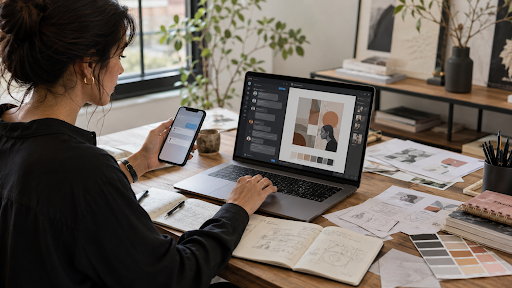
Mobile is best for capture and continuity
Mobile messaging works well for:
quick replies
urgent updates
sending a reference photo
checking a deadline
recording a voice note
confirming that a file arrived
keeping a project moving while away from the desk
The advantage is immediacy.
The phone keeps the conversation alive when people are moving.
Desktop is better for processing and decision-making
Desktop becomes more useful when the conversation requires:
detailed feedback
file comparison
longer responses
research
documentation
final approval
coordination across several applications
The advantage is context.
The desktop makes it easier to see the conversation beside the work the conversation is actually about.
Five Signs a Conversation Should Move to Desktop
1. The reply is becoming longer than a quick response
If someone starts writing multiple paragraphs on a phone, that is often a sign that the discussion has become too detailed for mobile. Moving to desktop allows the person to organize the response more clearly.
2. Several files have entered the conversation
The moment a discussion involves multiple versions, references or attachments, desktop becomes more valuable. This is especially true when team members need to compare files rather than simply view them.
3. Another creative application needs to stay open
If a designer has to switch repeatedly between messaging and a design application, the workflow becomes inefficient. On desktop, the conversation can remain visible beside the creative tool.
4. The team is making a decision that will matter later
Final selections, deadlines, ownership and approval decisions deserve more structure. If the conversation is moving from exploration into commitment, desktop is often a better environment for summarizing what has been decided.
5. Notifications are interrupting the work itself
Mobile messaging is designed to capture attention quickly. That is useful when something is urgent, but damaging when a person is trying to enter a focused creative state. When the phone becomes the main source of interruption, moving the active project conversation to desktop can make notification management easier.
Create a Clean Mobile-to-Desktop Handoff
Moving to desktop should not create a second conversation.
The goal is continuity.
A simple handoff process works better.
Step 1 — Finish the immediate mobile exchange
If possible, do not disappear from a fast-moving discussion without explanation.
A short message can help:
“I’m moving to desktop so I can review the files properly.”
That gives colleagues context for the pause.
Step 2 — Open the same account and conversation on desktop
Confirm that:
the correct account is active
the correct thread is open
recent files and messages are visible
the device is recognized and secure
If a team wants a desktop-specific reference while defining that handoff, the Paper Plane desktop workflow guide can provide additional context on setup and day-to-day use.
The more important decision is how desktop messaging fits the team's own file, notification, security and project-record practices. A technically functional client still needs to support the way the team actually works.
Step 3 — Reorient before replying
Before continuing the discussion, review the most recent messages.
Look for:
the latest file
the most recent change request
unresolved questions
the last confirmed decision
This prevents people from replying to an old point after the conversation has already moved on.
Step 4 — Open the relevant project materials
Bring up the actual work beside the messaging window.
That might include:
the current design
the brief
a shared document
reference material
production notes
This is where desktop starts delivering real value.
Step 5 — Continue with full context
Once the conversation and the project materials are visible together, feedback tends to become more specific.
Instead of:
“The spacing feels off.”
a designer can say:
“The headline-to-image spacing in the second layout feels too tight. I’d increase it before changing the type size.”
That level of specificity saves revision cycles.
Desktop Space Helps Restore Context
One of the biggest productivity gains from desktop messaging is not faster typing.
It is context visibility.
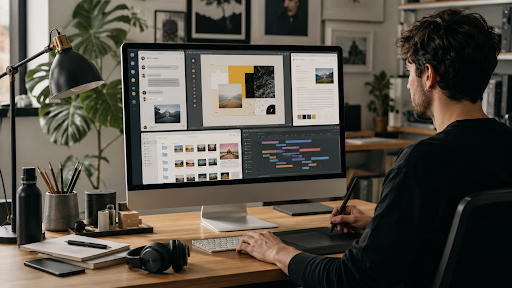
On a larger screen, a creative professional can see:
the current conversation
the design or document
reference material
a timeline
a shared folder
This reduces the amount of information the person has to hold in memory while switching between applications.
For creative work, that matters because many decisions are relational.
A color choice depends on the reference.
A copy change depends on the layout.
A deadline depends on the production schedule.
A message becomes easier to understand when the supporting information is visible at the same time.
Do Not Let Chat Become the Project Archive
Creative teams often use messaging tools for file exchange because it is fast.
That does not mean messaging should become the permanent home of project assets.
Chat works well for:
sending a draft
reviewing a reference
asking for feedback
sharing a temporary export
It is less effective as the final archive for:
approved source files
production masters
final campaign assets
organized reference libraries
completed client deliverables
A message saying “final_v3.jpg” may make sense today.
Three months later, it may be difficult to know whether that was actually the final version.
A better workflow is:
Send in chat → discuss in chat → approve in chat → store final asset in the project system.
The project folder, DAM or shared drive should remain the long-term source of truth.
Separate Creative Feedback From Final Decisions
Creative conversations should stay flexible while ideas are being explored.
But flexibility becomes a problem when nobody knows which comment represents the final direction.
A useful habit is to end detailed discussions with a short summary.
For example:
Final decisions
Use Concept B.
Reduce logo size slightly.
Keep the second headline option.
Export final assets by 3 PM.
Design lead owns final delivery.
This summary does not need to be formal.
Its purpose is simply to separate discussion from commitment.
That becomes particularly valuable when team members join the conversation at different times or work across time zones.
Reduce Notification Noise When Deep Work Starts
Moving a conversation to desktop should not mean moving every distraction to a larger screen.
Creative teams should decide which notifications deserve immediate attention.
Useful options may include:
muting high-volume groups
keeping direct messages active
allowing mentions
disabling notification sounds
checking low-priority channels in batches
using system focus modes during production work
The objective is not silence.
It is signal.
A designer who receives 70 low-priority alerts during a two-hour work session will eventually stop treating notifications as meaningful.
That makes truly important messages easier to miss.
A Practical Workflow for Remote Creative Teams
Cross-device communication becomes especially important when teams are distributed.
A designer in Taipei may be working with a producer in Hong Kong and an editor elsewhere in Asia.
Their day might look like this:
Morning — Mobile check-in
The designer checks overnight messages and confirms the day’s priorities.
First work block — Desktop discussion
Detailed feedback moves to desktop while the design files and references are open.
Production — Focused work
Notifications are reduced while the designer works.
Approval — Structured summary
The team confirms the selected version, final changes, owner and deadline.
Away from desk — Mobile continuity
Short updates continue from mobile without reopening the entire production workflow.
This creates continuity without requiring every device to handle every task equally.
Multilingual Teams Should Standardize Meaning, Not Interface Language
Creative teams working across Hong Kong, Taiwan and other regions may use different interface languages.
One person may prefer Traditional Chinese.
Another may work in English.
Another may use Simplified Chinese.
There is usually no operational reason to force everyone to use the same interface language.
What does need to remain consistent is project terminology.
Standardize:
project names
file names
version labels
approval language
owners
deadlines
For example, problems start when one person names a file:
final.psd
another creates:
final2.psd
and someone else uploads:
really-final-approved.psd
The interface language is not the issue.
Version discipline is.
Create a Conversation-Closing Habit
One of the simplest ways to improve creative messaging is to close long discussions deliberately.
At the end of a substantial conversation, summarize four things:

This takes less than a minute.
It can save far more time the next morning.
Instead of asking:
“What did we decide yesterday?”
the team has an immediate answer.
When Mobile Is Still the Better Choice
Not every conversation belongs on desktop.
Mobile remains the better tool for many creative situations.
For example:
location scouting
events
shoots
travel
urgent check-ins
capturing visual references
quick approvals
short voice notes
The objective is not to eliminate mobile communication.
It is to recognize when convenience begins to cost clarity.
A Simple Mobile-to-Desktop Checklist
Before continuing a long discussion on a phone, ask:
1. Is the conversation becoming long?
2. Are several files involved?
3. Do I need another application open?
4. Is the team making a decision?
5. Does the feedback require detail?
6. Can this discussion wait until I reach a desktop?
7. Will the final decision be documented?
If several answers are yes, the conversation has probably reached the point where desktop will help.
Better Tools Do Not Replace Better Communication Habits
Creative teams do not need to move every message to a computer.
They need to recognize when mobile convenience starts reducing context.
The strongest workflow gives each environment a clear role.
Mobile for momentum.
Desktop for depth.
Project systems for memory.
When teams make that distinction, messaging becomes less chaotic, files are easier to track, feedback becomes clearer and decisions are less likely to disappear into the thread.
The result is not simply better communication.
It is a smoother creative process.
Frequently Asked Questions
When should a creative team move a conversation from mobile to desktop?
Move when the discussion becomes long, file-heavy, decision-oriented or requires another creative application to remain open at the same time.
Is desktop messaging better for creative work?
Desktop is often better for detailed feedback, file comparison and complex conversations. Mobile remains useful for quick communication and continuity.
How should creative teams manage files shared in chat?
Use messaging for sending and discussing files, but move approved final assets into a structured project folder, shared drive or asset-management system.
Should final creative decisions remain only in messaging apps?
It is better to summarize important decisions and record them in the relevant project system when they affect deadlines, ownership or final deliverables.
How can remote creative teams reduce notification overload?
Mute low-priority groups, keep important direct messages or mentions active, disable unnecessary sounds and use focus periods during production work.
Can multilingual teams use different interface languages?
Yes. Teams can use different interface languages while standardizing project names, version labels, approval terminology, ownership and deadlines.
HOW DO YOU FEEL ABOUT FASHION?
COMMENT OR TAKE OUR PAGE READER SURVEY
Featured




Sedentary work habits and daily screen time are inspiring many to embrace simple postural routines and gentle adjustments to ease neck tension and stiffness.