
Why Chrome Feels Slow: Check Your Toolbar Before Your Hardware
PAGE
By Finixio Digital
Chrome starts to drag, pages take a second longer to settle, and the obvious conclusion is that the laptop is getting old. That conclusion is usually wrong, or at least premature. Before you price up more memory, spend ten minutes looking at the row of icons next to your address bar. Even the best productivity Chrome extensions only earn their place if they stay light, and a few of the ones sitting there now almost certainly do not.
The toolbar matters because of Chrome extension permissions. When you install something and grant it access to every site you open, you are not adding a button. You are adding code that runs on every page you load, whether you use the tool that day or not. Five extensions with that level of access do their work five times over on every tab. That cost is invisible, because nothing on screen tells you it is happening.
This article covers how to measure what your browser is actually spending, the four things that cause most slowdowns, how to cut an extension's access without losing the tool, and how to tell when the problem really is your hardware.
What actually uses memory in Chrome
Most advice about a slow browser starts and ends with closing tabs. That is worth doing, but it treats the symptom you can see rather than the one you cannot.
Tabs are not always the problem
A tab has a fixed cost. Open it, and it holds a certain amount of memory until you close it. An extension with site-wide access works differently. Its cost repeats across every open tab because it runs on each one. Ten tabs and one heavy extension can be worse than fifteen tabs and none.
That is why people close tabs, feel a small improvement, and are back where they started an hour later. The tabs were never the expensive part.
How to read Chrome's task manager
Chrome has a built-in task manager, and almost nobody opens it. Press Shift+Esc. It lists every tab and every extension as a separate line, with memory and CPU columns for each.
What to record
Sort by memory. Work through the list and note anything using more than a typical tab. Take the reading an hour into a normal working session rather than straight after a restart, because a fresh window tells you nothing about how your browser behaves in use.
Why one reading is not enough
Memory use swings with what you had open and what those pages were doing. Take a second reading on a different day before you decide anything. A tool that looked expensive on Tuesday may have been reacting to one heavy page.
The four things that make Chrome feel slow
In practice, almost every slow browser comes down to one of these four, and often to a combination.
Extensions that run on every page
The heaviest tools are the ones that change what a page looks like or read what is on it. Style rewriters, writing checkers, shopping assistants, and translation tools all fall into this group. They have to inspect the page before they can do anything useful, so they do work on every load.
The important part is that the cost has nothing to do with how often you use the tool. An extension you last opened in March is still working on every page you visit today.
Too many live tabs left open
Not all open tabs are equal. A parked article you meant to read is cheap. A dashboard that refreshes itself, a spreadsheet, a video call tab, or an email client are all doing continuous work.
Sort your task manager by memory, and you will usually find three or four tabs accounting for most of the total. Those are the ones worth closing, not the twenty parked articles.
Heavy sites you leave open all day
Social feeds are the single worst offender here, and most people keep at least one open permanently. Infinite scroll means the page never stops loading new content. Video autoplays. The app polls in the background for updates you are not looking at. A feed left open for a working day can end up costing more than every extension on your toolbar combined.
If you keep a feed open to monitor rather than to post, a lighter read-only path is worth trying. Tools like Sotwe let you view public X content in a plain browser page without logging in, loading a fraction of what the full app does. Treat it as an experiment, not a fixture. Third-party viewers like this have had documented outages and access problems as X has tightened its restrictions, so check whether it works before you rely on it for anything that matters.
The general principle holds regardless of which tool you use. A read-only view of a site almost always costs less than the full application.
A profile carrying years of settings
If you have used the same Chrome profile across several machines, it has collected things. Old sync data, extensions you forgot you installed, startup pages you no longer need, and settings from a job you left.
A second profile for work, or a clean one for a specific project, is often faster than the one you have carried for five years. You do not have to abandon the old profile to test this.
Chrome extension permissions and what they cost in speed
Permissions are usually discussed as a privacy matter. They are also a performance matter, and the same mechanism viewed from different angles.
Look for the phrase "access to your data on all sites." It means the extension can read and change what is on every page you open. That is what lets a writing checker check your writing anywhere, and it is also what lets it run everywhere.
Site-wide access versus narrow access
Understanding the difference between the two is worth it before you start removing things.
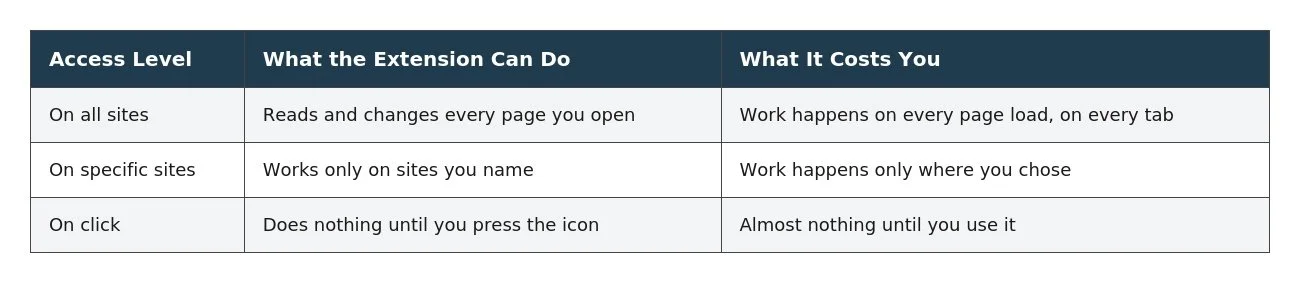
Some tools genuinely need the top row. A password manager has to fill a login field wherever you find one. Many tools ask for it because it was simpler to build that way, and those are the ones worth changing.
Switching an extension to on click
Type chrome://extensions into the address bar and open the details for any extension. Under site access, you can usually switch it from all sites to on click.
Some tools keep working perfectly. Others break because they need to see the page before you know you want them. Try it, use the browser for a day, and put back only what actually stopped working.
A 10-minute toolbar audit
Run this once, and you will have a clear picture of where your browser is spending.
Press Shift+Esc and sort by memory.
Note anything holding more than a typical tab.
Open chrome://extensions and read the permissions on each one.
Remove anything you cannot remember using in the past week.
Switch the survivors to on-click access wherever the tool allows it.
Restart Chrome, work normally for an hour, and take a second reading.
The comparison between your first and second readings is the useful part. It tells you what the changes actually bought you, rather than what you hoped they would.
When it really is the hardware
The toolbar is the first place to look, not the only one. Sometimes more memory is the right answer.
Signs the problem is not Chrome
If your machine is slow outside the browser too, the browser isn't the cause. If your disk is nearly full, everything on the machine will suffer. If the laptop is hot and the fans are loud, it may be throttling itself, and no amount of tab management will help. And if the machine has very little installed memory, Chrome will struggle no matter how disciplined you are.
Run the audit first anyway. It takes ten minutes, and it tells you whether you actually need a hardware upgrade.
Start with the toolbar
The order matters. Measure what your browser is holding, read the permissions for what you have installed, remove what you aren't using, and only then start thinking about hardware. Most people find the problem in the first two steps.
The harder question comes next. Once you have stripped the toolbar back, you have to decide what earns a place on it again. A tested set of extensions that stay light and ask for narrow permissions is a better starting point than reinstalling whatever you had before.
Frequently asked questions
Does closing tabs actually free memory?
Yes, but less than people expect. Chrome releases the memory a tab was holding when you close it. If the real cost is an extension running across all your tabs, closing tabs moves the number down without fixing the cause.
How many extensions is too many?
There is no fixed number. What matters is how many have access to every site you open. Two heavy extensions can cost more than eight narrow ones.
Do extensions slow Chrome even when I am not using them?
Often, yes. An extension with site-wide access runs on every page load, whether you click it or not. That is the main thing people are surprised by.
Is Chrome heavier than other browsers?
It depends more on what you have installed than on the browser itself. A loaded Chrome profile and a loaded profile in another browser tend to end up in similar territory.
Should I use a separate profile for work?
It helps if your work and personal setups need different tools. Extensions install per profile, so a work profile can stay lean while your personal one keeps everything else.
HOW DO YOU FEEL ABOUT FASHION?
COMMENT OR TAKE OUR PAGE READER SURVEY
Featured





Twelve times on input and twelve times on output is not a ratio you usually find inside a single vendor's lineup.