
How to Convert PDF to PPT on Mac: A Fast & Free Guide

PAGE
By PAGE Editor
A while ago I ran into a small but annoying problem.
A colleague sent me a 28-page PDF report late in the afternoon. The task sounded simple: turn this into slides for tomorrow’s meeting. Easy, right?
Well… not exactly.
When I tried copying sections into PowerPoint, the formatting went wild. Text boxes jumped around. Charts turned into low-resolution images. One page with a two-column layout became a complete mess once pasted into slides.
At that moment I realized something many people eventually discover: PDFs are great for reading, but terrible for editing.
If you’ve ever tried converting a document like that into a presentation on a Mac, you probably know the feeling. You start with a neat report and end up spending an hour fixing fonts and slide spacing.
So I started testing different ways to convert a PDF into an editable PowerPoint file without rebuilding everything manually.
Here’s what actually worked for me.
Why This Problem Shows Up So Often
PDF files are designed to lock the layout. That’s perfect when you want to send a finalized document to someone.
But presentations are different.
When preparing slides, you usually want to:
move sections around
simplify paragraphs into bullet points
edit charts or numbers
apply a consistent slide master layout
None of that is easy inside a PDF.
This is why people often convert the document first, then adjust the slides afterwards.
In consulting teams, marketing departments, and even universities, this workflow happens all the time. Someone writes a long document, and later another person has to transform it into a presentation.
The First Method I Tried (and Why It Failed)
My first instinct was the obvious one: just copy the content.
Open the PDF, copy the text, paste it into PowerPoint, then add images where necessary.
It worked… for about two slides.
After that things got messy.
headings lost their formatting
text spacing became inconsistent
images appeared at strange resolutions
The biggest issue was charts. Once copied, they were no longer editable. They were basically screenshots.
For a short document this approach might be fine. But when I tried doing this with a 25-page report, it quickly became clear that rebuilding slides manually was going to take much longer than expected.
A Faster Workflow I Eventually Used
After running into those formatting issues, I looked for a faster way.
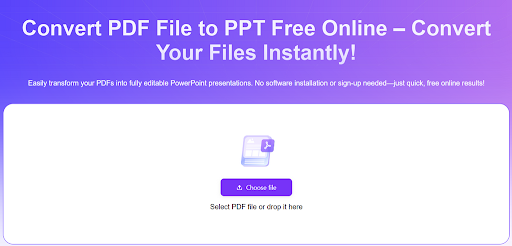
One option that worked surprisingly well was using an online pdf to ppt converter. Instead of manually copying content, the tool analyzes the PDF structure and converts each page into slide elements.
When I tested it with that same 28-page report, the process took roughly 50 seconds from upload to download.
The resulting PowerPoint file wasn’t perfect — I still had to tweak a few slide layouts — but the core structure was already there. Text blocks were separated properly, and most images appeared in the right place.
Compared with rebuilding everything manually, the time saved was significant.
The process itself is pretty straightforward:
Upload the PDF document
Let the system detect text and layout elements
Download the generated PowerPoint file
Adjust the slides as needed
For simple reports or research documents, the results are often good enough to start editing immediately.
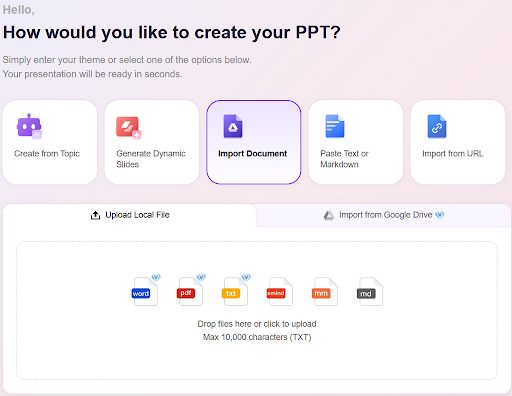
Another Option: Exporting Through Adobe Acrobat
If you already work with professional PDF tools, Adobe Acrobat also provides a conversion feature.
The workflow looks something like this:
Open the PDF in Acrobat
Select Export PDF
Choose PowerPoint as the export format
Save the converted presentation
Adobe’s conversion engine tends to handle complicated layouts fairly well. According to Adobe’s Acrobat documentation, their export tools attempt to maintain the document structure when converting between formats.
However, not everyone has Acrobat installed, and the subscription cost may not make sense if you only convert files occasionally.
For quick tasks, lighter solutions often feel more convenient.
A Few Things I Learned During the Process
After converting several documents this way, I started noticing patterns. Some PDFs convert almost perfectly, while others require more cleanup.
Here are a few observations that helped me avoid headaches later.
Clean documents convert better
PDFs exported from Word, Google Docs, or PowerPoint usually convert smoothly. Scanned documents or image-based PDFs are harder for any converter to interpret.
Simple layouts are easier
Pages with multiple columns, floating graphics, or unusual typography often require manual adjustments after conversion.
Editing the Slide Master saves time
Once you open the converted presentation, updating the Slide Master first can fix fonts and spacing across the entire deck.
Where This Workflow Is Most Useful
Converting PDFs to PowerPoint isn’t just a one-off situation. It actually shows up in a lot of professional workflows.
Consultants often transform strategy reports into client presentations.
Researchers turn papers into conference slides.
Marketing teams reuse whitepapers when creating webinar decks.
In all these cases, the information already exists — it simply needs to be reshaped into a presentation format.
One Small Tip Before Converting a Large File
If you’re dealing with a big document — say 40 pages or more — try converting just a few pages first.
It’s a quick way to see how the layout behaves after conversion. If everything looks good, you can process the full document with more confidence.
Sometimes that small test can save you from fixing dozens of slides later.
If you’ve ever stayed late rebuilding slides from a PDF report, you probably understand why finding a smoother workflow matters. Turning a long document into an editable presentation doesn’t have to take hours — sometimes it only takes a minute and a few adjustments afterward.
HOW DO YOU FEEL ABOUT FASHION?
COMMENT OR TAKE OUR PAGE READER SURVEY
Featured




Preparing a home for overnight guests creates different priorities from ordinary weekly upkeep.